Create an Account and Sign In
Create your Synco account, sign in, and recover access when needed.
Create an account
- Open Create your Synco account.
- Enter your name if you want it displayed on the account.
- Enter your email address.
- Create a password with at least eight characters.
- Enter the same password again and select Create account.
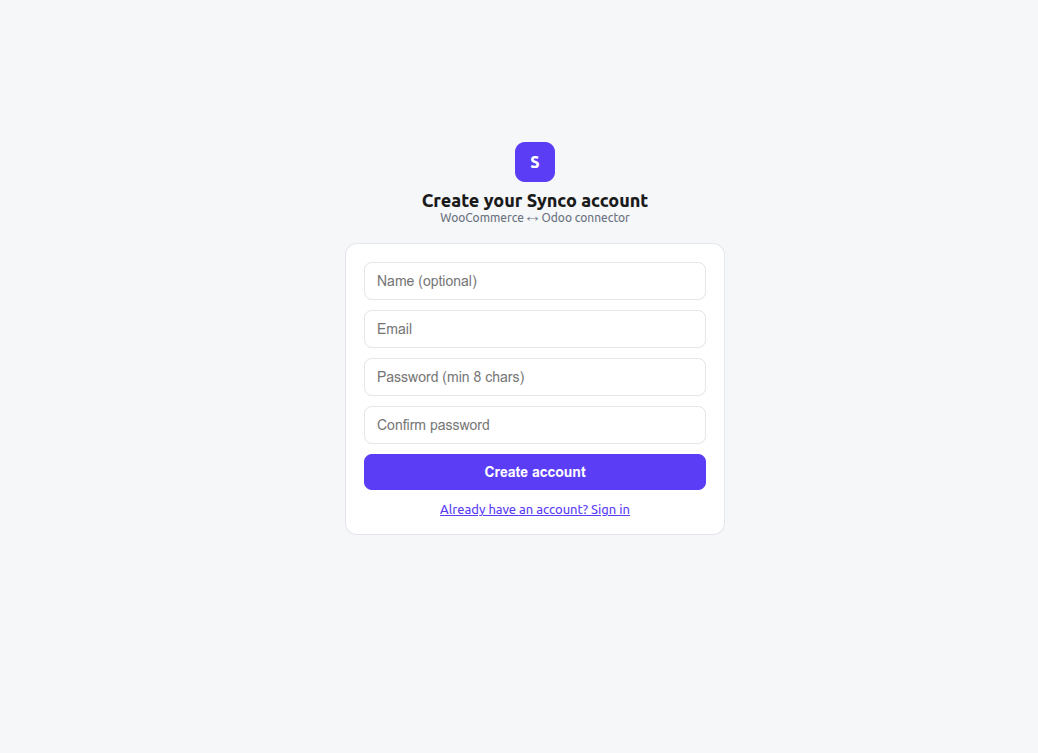
After registration, Synco signs you into the application so you can connect a store. Use the Already have an account? Sign in link if the email is already registered.
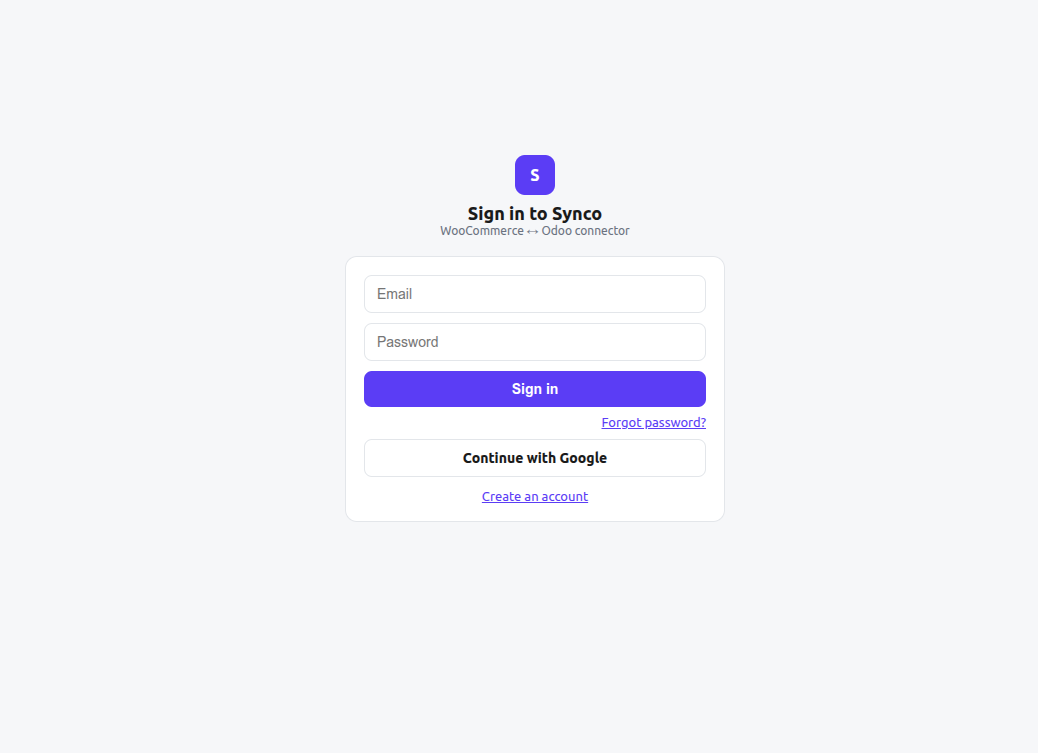
Sign in
- Open Sign in to Synco.
- Enter your email and password.
- Select Sign in.
You can also select Continue with Google to use the supported Google authentication flow.
Reset a forgotten password
Select Forgot password? on the sign-in page, enter the account email, and follow the reset instructions sent to that address. A reset link is time-limited; request a new one if it has expired.
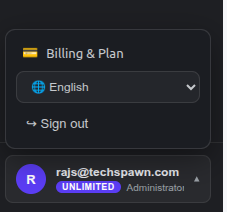
Account menu
Open the account menu at the bottom of the application navigation to access Billing & Plan, change the interface language, or sign out. The menu also shows the signed-in email address, plan, and role.
Next step
Connect your WooCommerce store, then configure Odoo.