
Introduction
Learn how Synco connects WooCommerce and Odoo and how its synchronization workflows fit together.
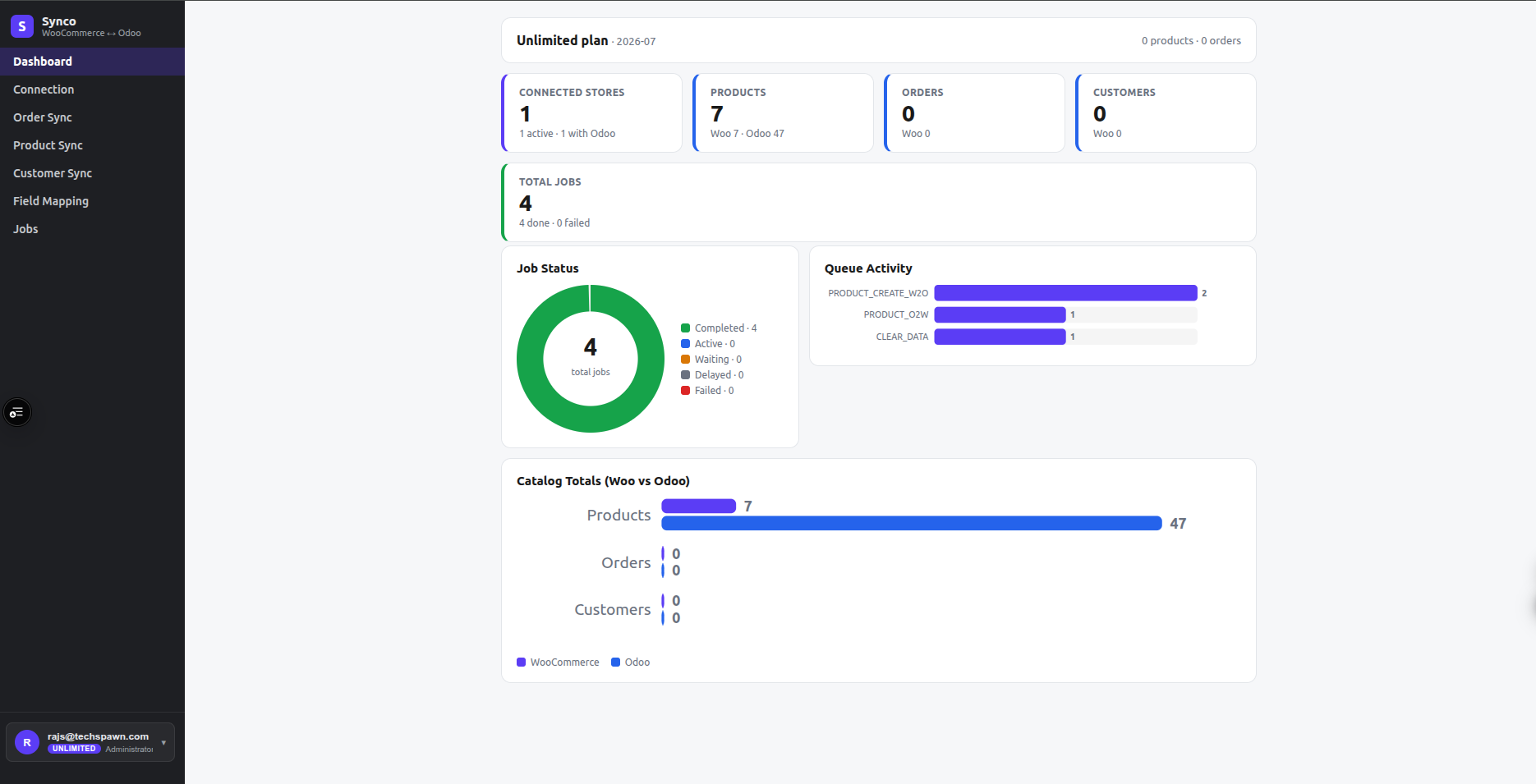
Synco connects a WooCommerce store to an Odoo database without requiring a connector plugin inside WordPress. After both systems are connected, Synco processes changes through background queues and records the outcome as jobs.
Core workflows
Products and inventory
Choose WooCommerce → Odoo, Odoo → WooCommerce, or both where the Product Sync page offers that direction. You can select product fields, control how products are created, restrict synchronization by categories or tags, synchronize images, and run manual batches. Inventory can run instantly, periodically, or only when triggered manually.
Orders and fulfillment
WooCommerce orders can create Odoo sale orders. Order settings control invoice and delivery behavior, currency, dates, numbering, notes, taxes, refunds, cancellations, payment methods, and customer handling. Rules can skip or modify matching orders before they are sent to Odoo.
Customers
Customer records can be queued automatically or selected from the Customer Sync list. Synco creates or updates the corresponding Odoo contact according to the selected customer settings and direction.
Field mapping
Field Mapping connects supported WooCommerce fields or metadata to compatible Odoo fields. Synco checks field types before a mapping is saved and applies enabled mappings during the matching resource sync.
Jobs and monitoring
Every queued operation has a status and result. Use Jobs to filter operations by resource, state, date, or search text and to inspect errors before retrying or changing settings.
Before enabling automation
- Use a test product or order first.
- Confirm that the correct Odoo company, stock location, accounts, journal, and currency are selected.
- Avoid enabling opposing instant inventory flows until one source of truth is established.
- Review the Free-plan limits before running a large batch.